AI Hairstyle Changer
Portrait Image*
Upload Portrait Image
Or drag image here
Try Sample Images
Hairstyle*
Hair Color*
Free uses today
10/10Your 10 free creations reset each day. If a generation fails, that attempt is returned.
AI Hairstyle Changer
AI hairstyle changer · virtual hairstyle try-on · hair color changer
Upload a clear portrait, choose a hairstyle and hair color, then generate a visual preview to compare before a real haircut or dye.
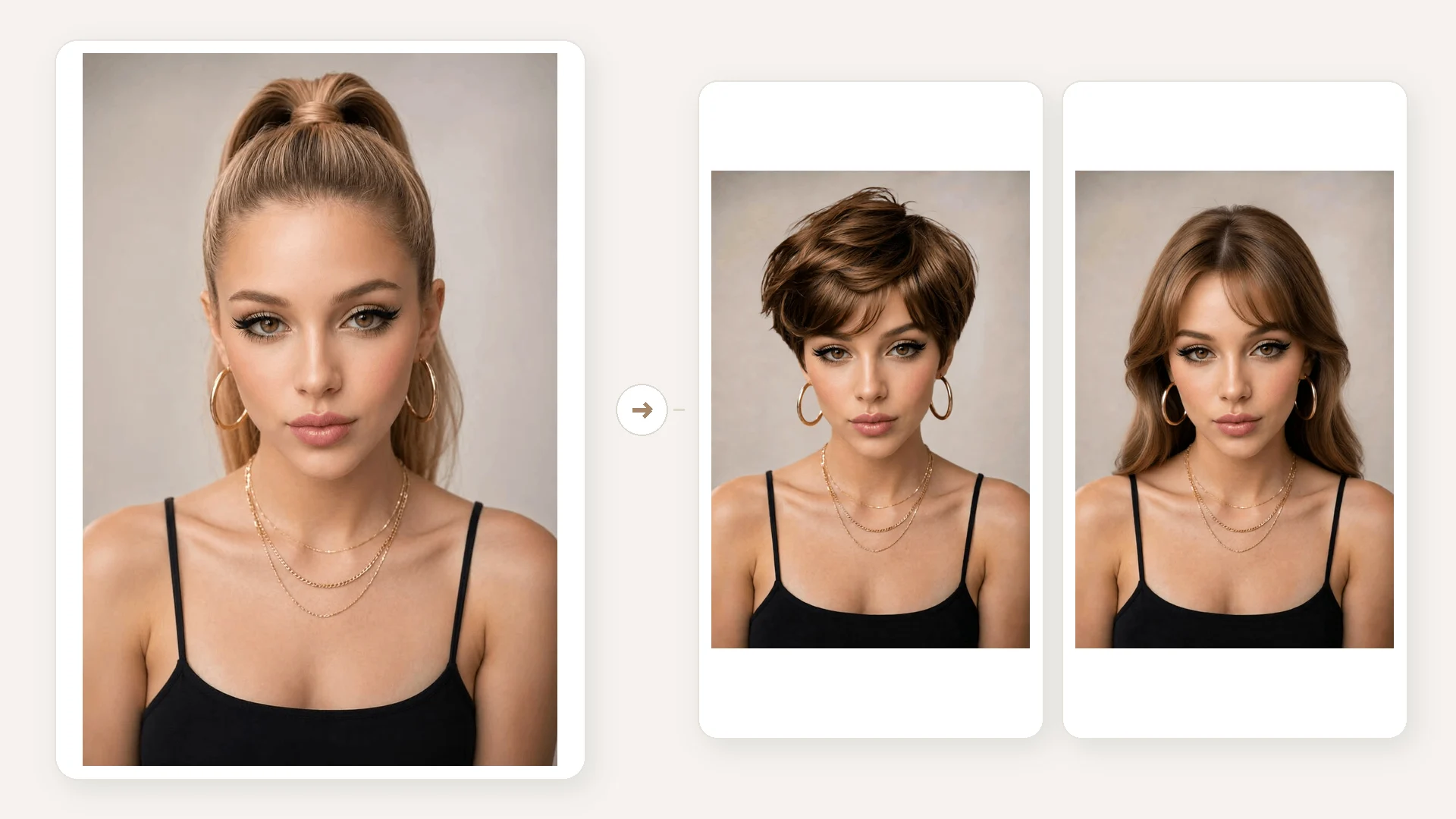 1 / 4
1 / 4
AI Hairstyle Changer
Upload a clear portrait, choose a hairstyle and hair color, then generate a visual preview to compare before a real haircut or dye.
01Upload a portrait
Choose a clear JPG or PNG portrait with the face and hairline visible.
02Choose a hairstyle
Select a preset hairstyle and hair color, then start the generation.
03Compare and download
Review the preview beside your original image, then download the version you want to keep.
AI Hairstyle Changer Examples
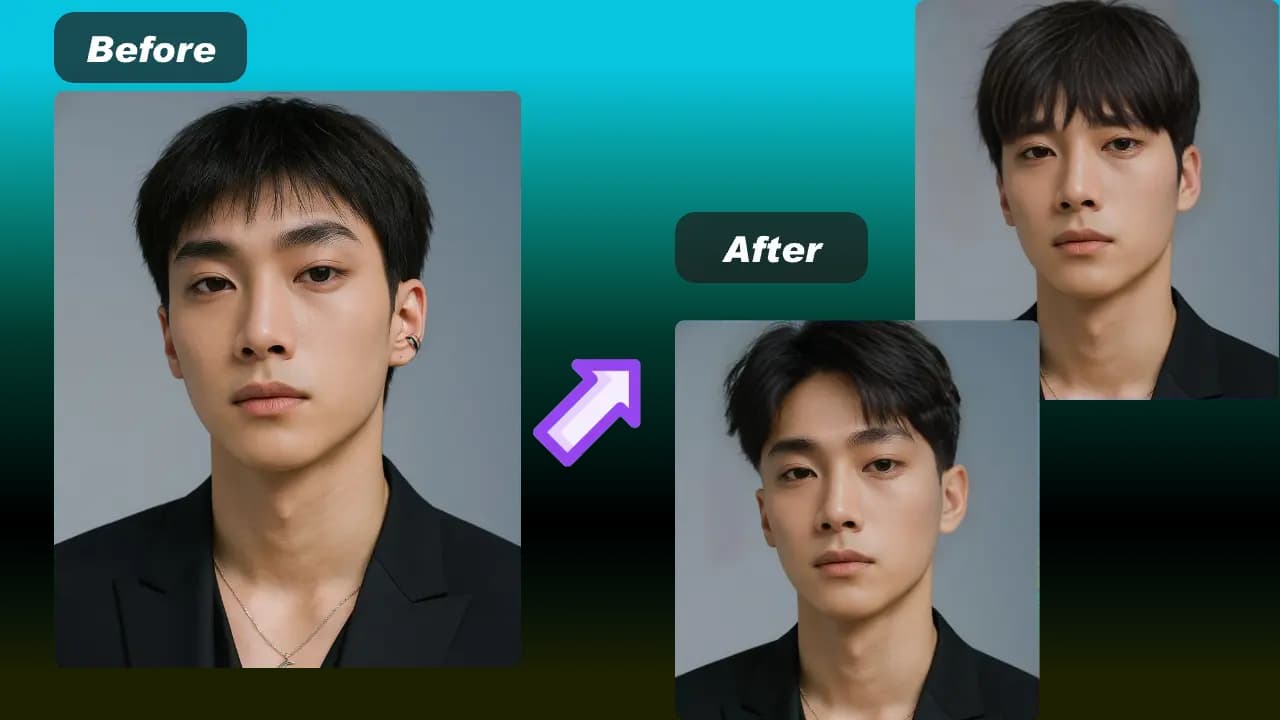
Compare hairstyle and color examples to see the kind of visual preview the editor can create from a portrait.
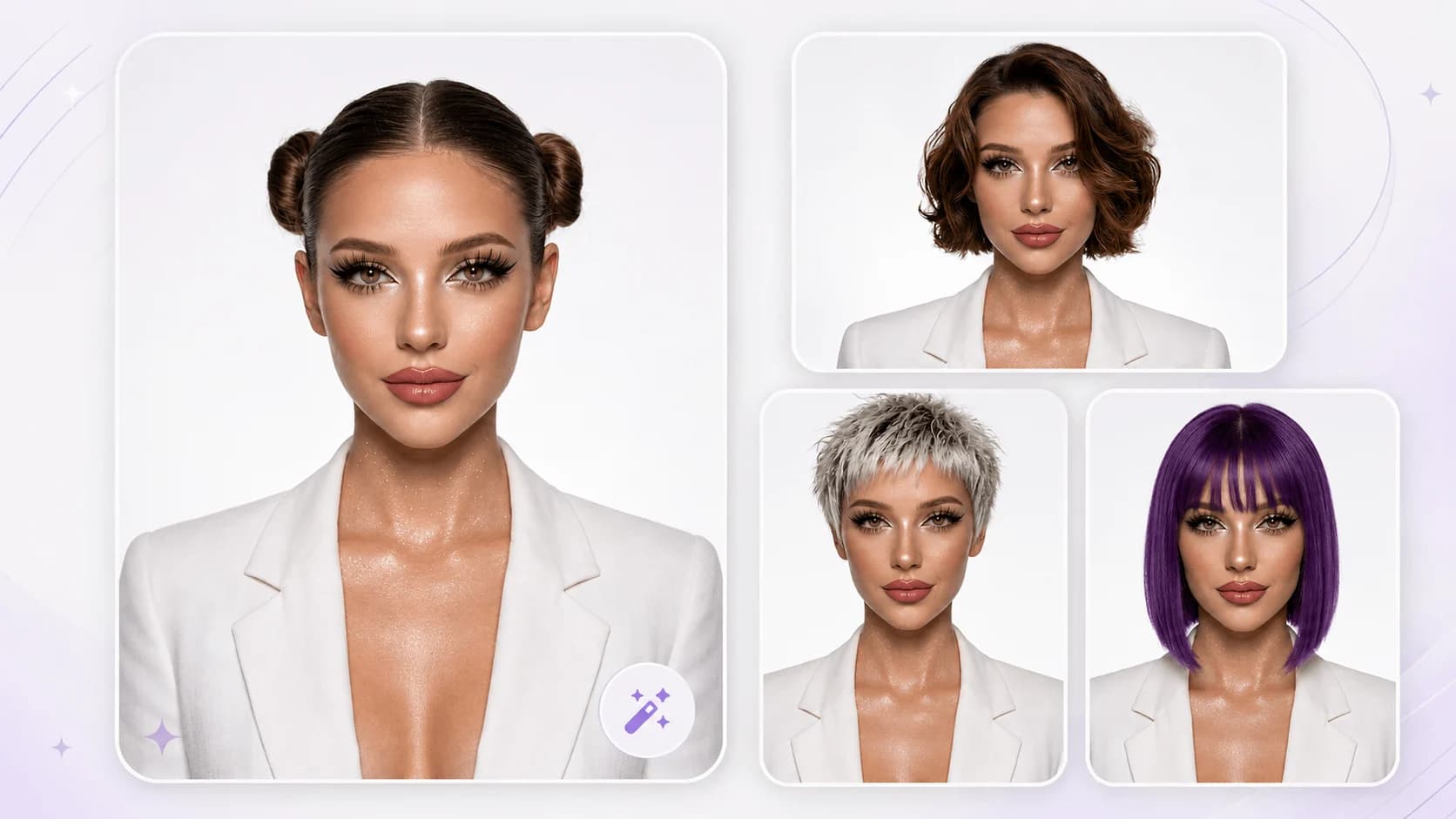
Compare images
AI Hairstyle Changer for Women: Try Female Hairstyles Online for Your Face Shape
Choose a focused editor, upload the required image, and compare the generated preview with the original before you decide what to try next.
HOW IT WORKS
How to use the AI Hairstyle Changer
Use a clear, forward-facing portrait to test a hairstyle or hair color as a visual reference before making a real change.
Upload a portrait
Choose a clear JPG or PNG portrait with the face and hairline visible.
Choose a hairstyle
Select a preset hairstyle and hair color, then start the generation.
Compare and download
Review the preview beside your original image, then download the version you want to keep.
01
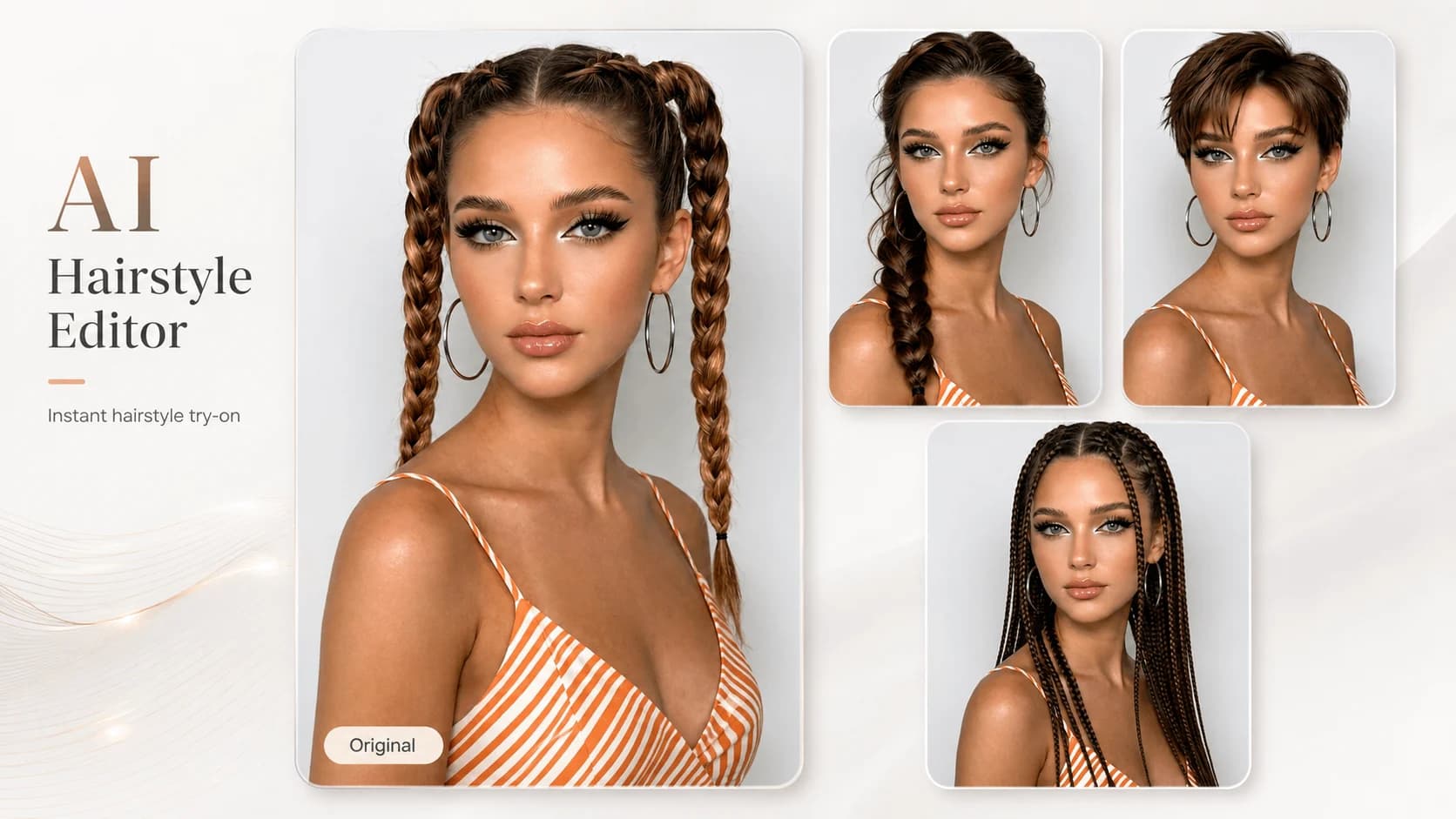
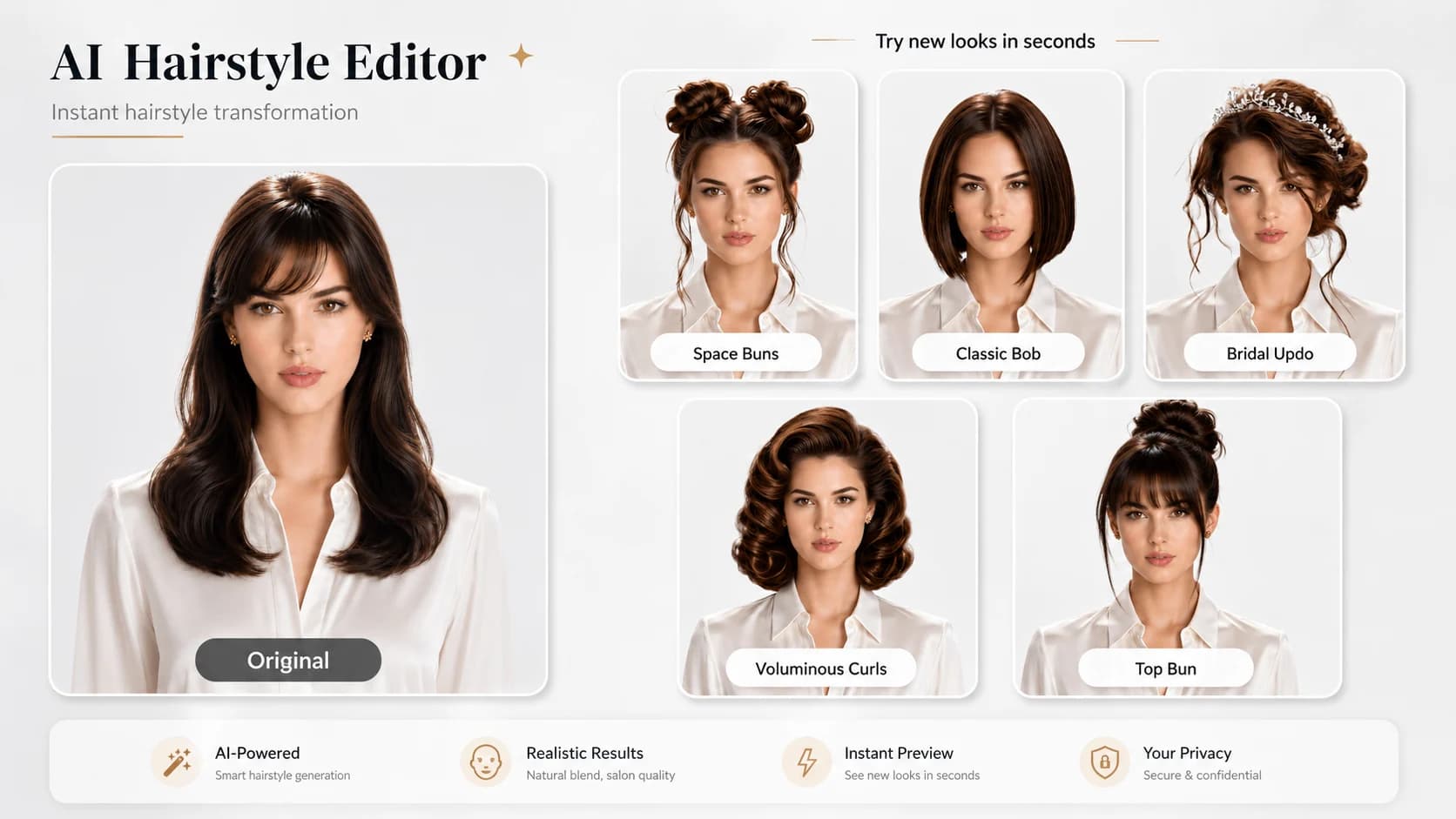
Try a haircut on your own photo
An AI hairstyle changer is an online editor that places a selected hairstyle or hair color on a portrait. It is useful when you want a visual reference for a barber, a colorist or your own styling decision—not a guarantee of an in-person result.
02
Use a photo that makes the hair easy to read
For a more useful preview, use a well-lit portrait where the face is not covered and the current hairline is visible. A front-facing photo gives the editor clearer information than a distant, heavily cropped or group photo.
03
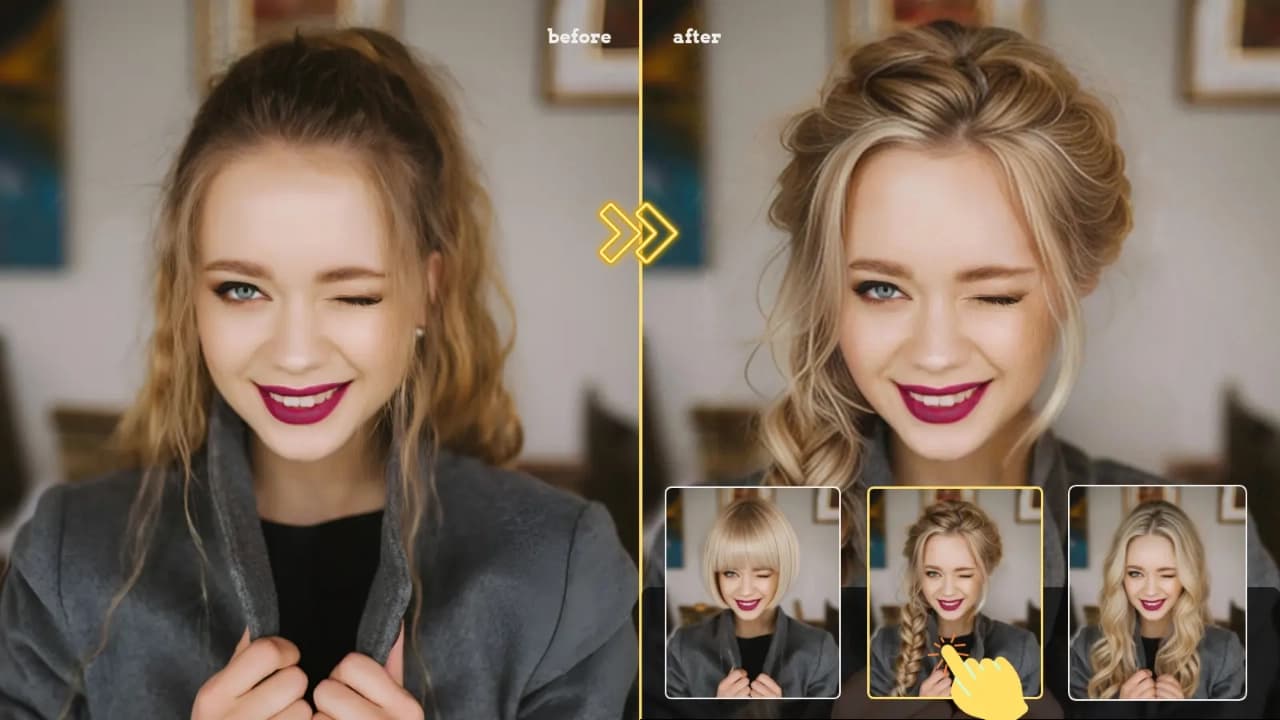
Compare length, texture and color
Use the same source image for several edits when you want to compare a short cut with a longer style, or one hair color with another. Keeping the portrait consistent makes the differences easier to judge.
04
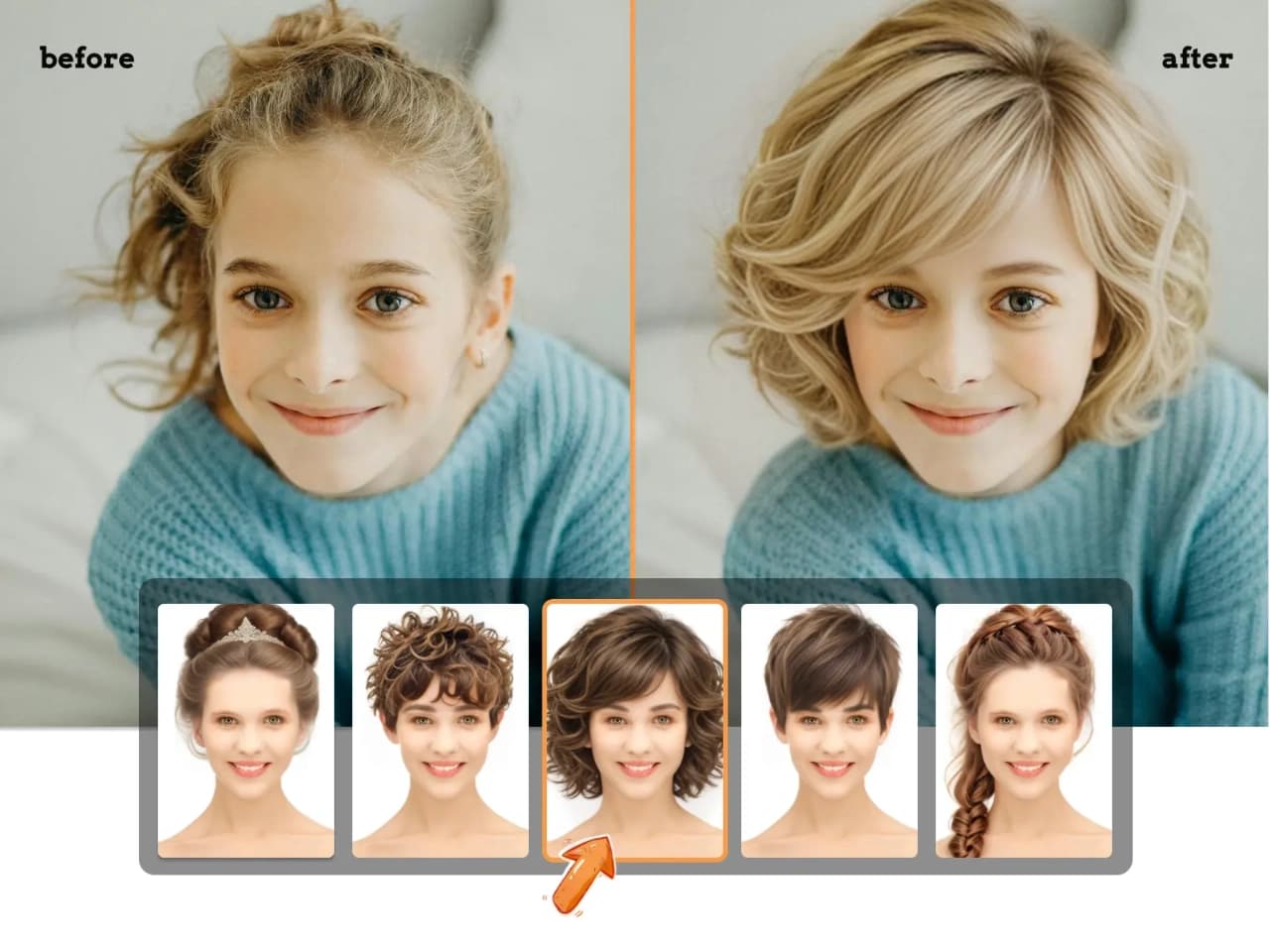
Treat the result as a styling reference
A generated image can help you explain a direction, such as a bob, a fade or a different tone. Hair density, texture, cutting technique and lighting still affect the real-world outcome, so share the preview as a reference rather than a final specification.
View Products
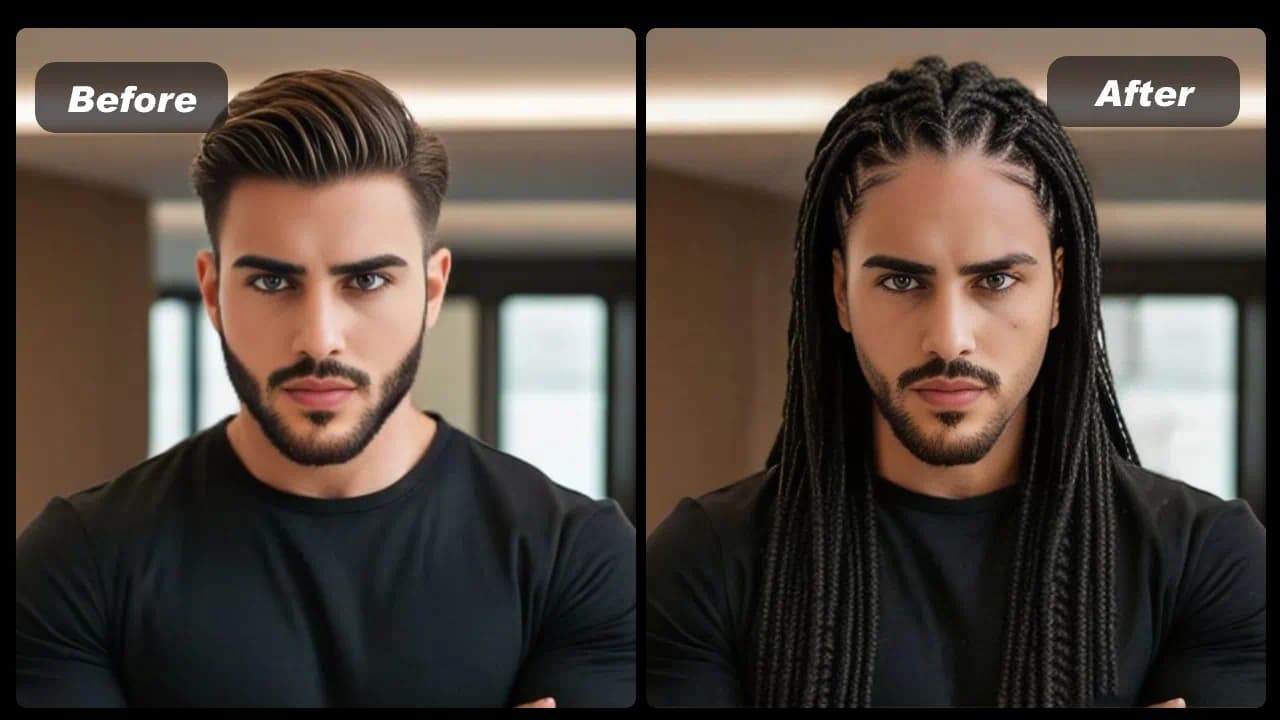
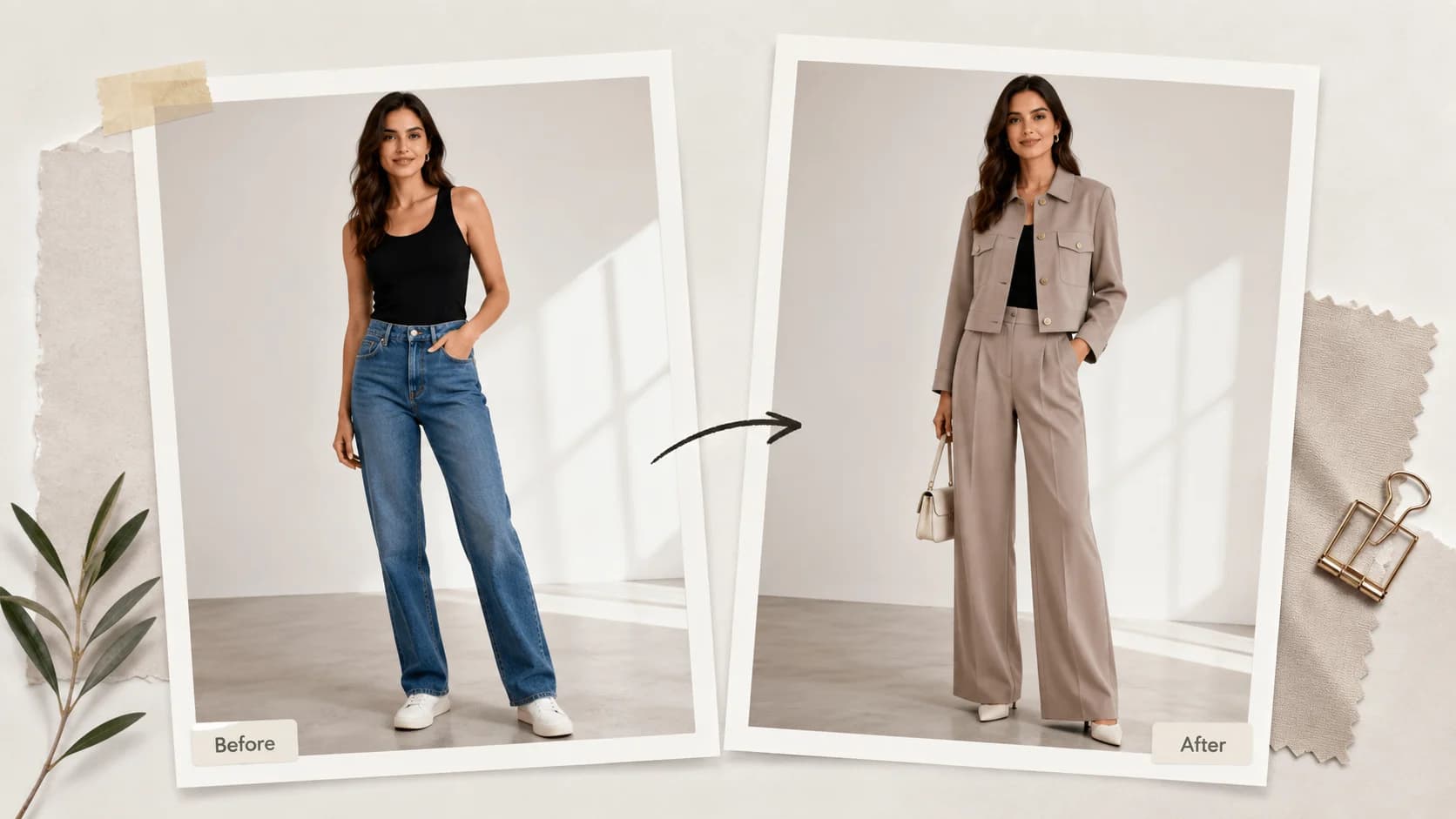
Related fashion tools
FAQ
AI Hairstyle Changer FAQ
Upload a clear portrait, choose a hairstyle and hair color, then generate a preview. Repeat with the same portrait when you want to compare several options.
Use a well-lit, forward-facing portrait where the full face and hairline are visible. Avoid group photos, heavy filters and images where hair covers most of the face.
Use it as a visual reference for a stylist or barber. The preview shows a possible direction, while the final cut depends on your hair texture, density and the styling technique used in person.
Yes. Choose a hairstyle and a hair color before generating the preview, then compare different combinations using the same portrait.
No. You can use the daily free creations without creating an account or entering payment details.
A failed generation does not use one of your daily free creations. Try again with a clear portrait or a different style selection.